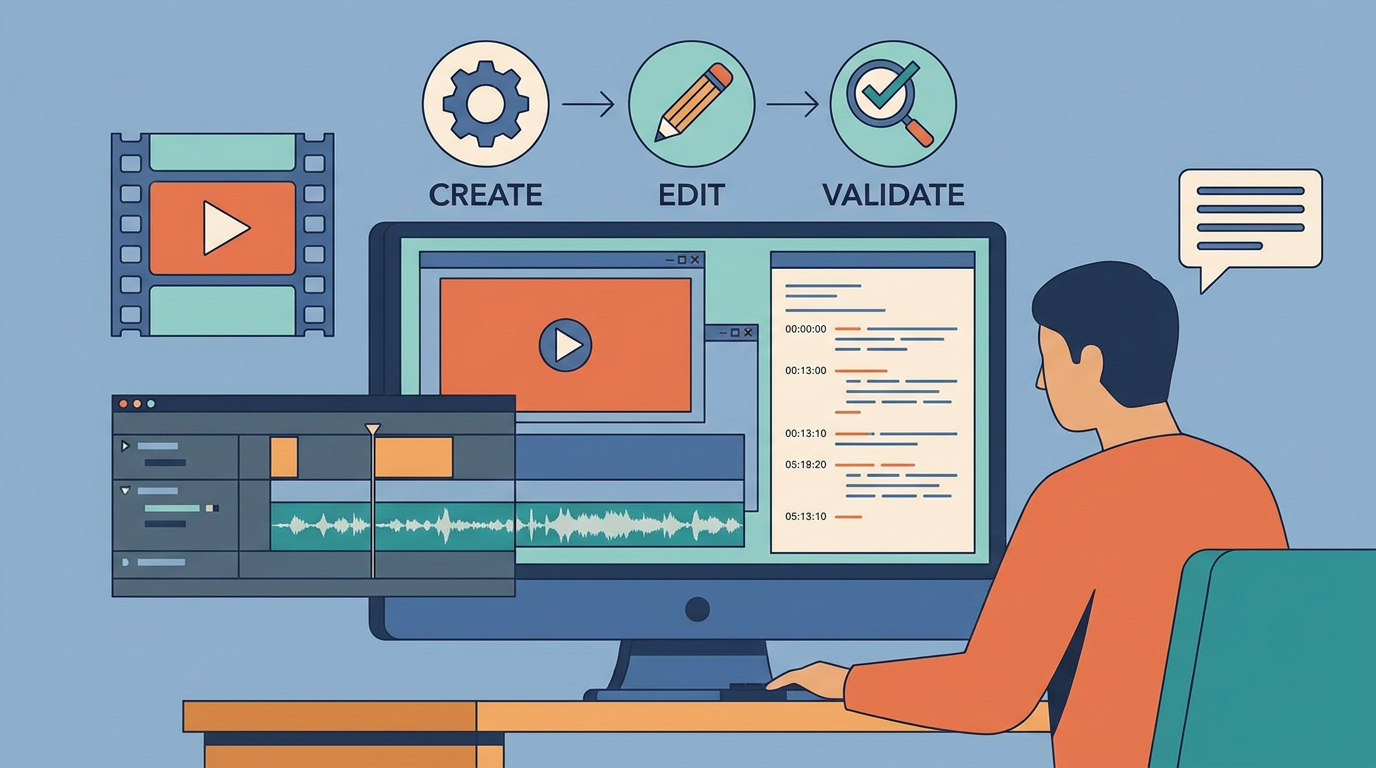
An SRT subtitle file is a plain-text file that pairs numbered lines of dialogue with start and end timestamps. A video player reads it and shows each line on screen at the right moment. In this tutorial you will write a small SRT file by hand, check it with a short Python script, convert it to WebVTT for web players and attach it to a video file.
The guide is for marketing, training and content teams who publish video, and for developers who handle subtitle files in automated pipelines. You need a text editor and Python 3. If you want to embed subtitles, you also need FFmpeg, an open-source command-line tool for processing audio and video. Complexity: Beginner.
ElevenLabs has published its own SRT file guide on the same subject. This tutorial focuses on validation and conversion steps you can reuse in your own workflow.
What you will build
- A correctly formatted SRT file with two subtitle cues. A cue is one block of text plus its display timing.
- A validation script that flags numbering, timing and overlap errors before a file reaches your video platform.
- A converter that produces a WebVTT file from the same content.
- An MP4 with selectable subtitles, plus an optional version with subtitles burned into the image.
How the SRT file format is structured
Every cue in an SRT file follows the same four-part pattern:
- A sequence number, starting at 1.
- A timing line in the form
HH:MM:SS,mmm --> HH:MM:SS,mmm. A comma, not a period, separates seconds from milliseconds. - One or more lines of subtitle text.
- A blank line that closes the cue.
The file has no header and no styling section. That simplicity is why so many editors, players and platforms accept it.
Architecture overview
The workflow runs in four stages. First, a transcript or script becomes timed cues. Next, the SRT file is validated. Then it is optionally converted to WebVTT. Finally, it is attached to the video or uploaded alongside it. Each stage reads the output of the previous one, so you can catch an error early instead of discovering it on a published video. Teams that already chain AI tools together can slot these checks into an existing LLM-assisted content workflow.
Security and cost considerations
Subtitle files often contain the full spoken content of internal meetings or unreleased product videos. Treat them with the same confidentiality as the video itself. If you send audio to a third-party transcription service, check its data retention terms first. Everything in this tutorial runs locally and needs no paid service.
Step 1: Write the SRT file by hand
Create a file named demo.srt and save it with UTF-8 encoding, so that accented characters display correctly:
1
00:00:01,000 --> 00:00:03,500
Welcome to the quarterly product update.

2
00:00:03,800 --> 00:00:06,200
This short demo covers three changes
to the onboarding flow.
The second cue spans two lines. Most players display both lines together. Keeping each line short makes subtitles easier to read on mobile screens.
Step 2: Create an SRT file from audio or a script
For longer videos, typing timestamps by hand is slow. Two approaches are common:
- From audio: a speech-to-text tool transcribes the recording and exports timed cues. Always review the output, because names, product terms and numbers are frequent sources of error.
- From an existing script: paste the text into a subtitle editor and set each cue’s timing while the video plays.
Whichever route you choose, run the validation step below before you publish.
Step 3: Validate the file with Python
Save this script as validate_srt.py. It reads the file, splits it into cues and reports problems without changing anything:
# validate_srt.py - checks numbering, timing format and cue order in an SRT file
import re
import sys
from pathlib import Path

# One timestamp: hours:minutes:seconds,milliseconds
TS = r"(\d{2}):(\d{2}):(\d{2}),(\d{3})"
TIMING = re.compile(TS + r" --> " + TS)

def to_ms(h, m, s, ms):
    # Convert a timestamp to milliseconds for easy comparison
    return ((int(h) * 60 + int(m)) * 60 + int(s)) * 1000 + int(ms)

def validate(path):
    # utf-8-sig also accepts files saved with a byte order mark
    text = Path(path).read_text(encoding="utf-8-sig").replace("\r\n", "\n")
    blocks = [b for b in re.split(r"\n\s*\n", text.strip()) if b.strip()]
    problems = []
    previous_end = 0
    for expected, block in enumerate(blocks, start=1):
        lines = block.split("\n")
        if len(lines) < 3:
            problems.append(f"Cue {expected}: needs a number, a timing line and text")
            continue
        if lines[0].strip() != str(expected):
            problems.append(f"Cue {expected}: numbered '{lines[0].strip()}'")
        match = TIMING.fullmatch(lines[1].strip())
        if not match:
            problems.append(f"Cue {expected}: bad timing line '{lines[1].strip()}'")
            continue
        start = to_ms(*match.groups()[:4])
        end = to_ms(*match.groups()[4:])
        if end <= start:
            problems.append(f"Cue {expected}: ends before it starts")
        if start < previous_end:
            problems.append(f"Cue {expected}: overlaps the previous cue")
        previous_end = end
    return len(blocks), problems

if __name__ == "__main__":
    count, problems = validate(sys.argv[1])
    print(f"{count} cues checked")
    for p in problems:
        print("-", p)
    sys.exit(1 if problems else 0)
Run it with python validate_srt.py demo.srt. Here is what each check does:
- Numbering confirms that cues run 1, 2, 3 with no gaps. Some players tolerate gaps, but gaps usually mean a cue was deleted or merged by mistake.
- Timing format catches a period used instead of a comma, missing digits or a broken arrow.
- Order and overlap flags cues that end before they start, or that begin before the previous one has finished.
The script exits with code 1 when it finds a problem. That lets an automation tool stop a publishing step automatically.
Expected output
For the sample file the script prints 2 cues checked and nothing else. If you change the first timing line to 00:00:01.000, it reports a bad timing line for cue 1.
SRT vs WebVTT: when to convert
WebVTT (Web Video Text Tracks) is the subtitle format that HTML5 video players use natively through the <track> element. It looks very similar to SRT, with three practical differences:
| Aspect | SRT | WebVTT |
|---|---|---|
| File header | None | Must start with WEBVTT |
| Millisecond separator | Comma | Period |
| Styling and positioning | Minimal, varies by player | Cue settings and CSS-based styling |
Keep SRT as your master file for editing and for platforms that ask for it. Convert to WebVTT when you serve video on your own website.
Step 4: Convert SRT to WebVTT
This converter changes only the timing lines, so the subtitle text stays exactly as written. It overwrites the output file if one already exists, so pick a new file name:
# srt_to_vtt.py - converts an SRT file to WebVTT without touching subtitle text
import re
import sys
from pathlib import Path

# Only timing lines change: the comma before milliseconds becomes a period
TIMING_LINE = re.compile(
    r"^(\d{2}:\d{2}:\d{2}),(\d{3}) --> (\d{2}:\d{2}:\d{2}),(\d{3})", re.M
)

src, dst = sys.argv[1], sys.argv[2]
text = Path(src).read_text(encoding="utf-8-sig").replace("\r\n", "\n")
body = TIMING_LINE.sub(r"\1.\2 --> \3.\4", text.strip())
# A WebVTT file must begin with the WEBVTT header followed by a blank line
Path(dst).write_text("WEBVTT\n\n" + body + "\n", encoding="utf-8")
print(f"Wrote {dst}")
Run python srt_to_vtt.py demo.srt demo.vtt. The cue numbers carry over, and WebVTT accepts them as cue identifiers.
Step 5: Attach subtitles to a video
There are three ways to deliver subtitles, depending on where the video will be shown:
- Sidecar file: many desktop players load a subtitle file automatically when it has the same base name as the video, for example
demo.mp4anddemo.srtin the same folder. - Soft subtitles: FFmpeg can add the text as a selectable track that viewers can switch on or off:
ffmpeg -i demo.mp4 -i demo.srt -c copy -c:s mov_text demo_subtitled.mp4. The-c copyoption keeps the original audio and video untouched, and-c:s mov_textstores the subtitles in a format that MP4 supports. - Burned-in subtitles:
ffmpeg -i demo.mp4 -vf subtitles=demo.srt demo_burned.mp4draws the text permanently into the image. This re-encodes the video, so it takes longer, and viewers cannot turn the subtitles off.
Always write to a new output file name. If FFmpeg asks whether to overwrite an existing file, answer no unless you have a backup.
Validation checklist
- The file is saved as UTF-8.
- Cues are numbered consecutively from 1.
- Every timing line uses commas before the milliseconds.
- No cue ends before it starts, and no two cues overlap.
- A blank line separates every cue.
- Names, figures and product terms have been checked against the script.
Common errors and troubleshooting
Subtitles do not appear at all
Check that the file name matches the video and that the extension is .srt rather than .srt.txt. Some operating systems hide extensions by default.
Strange characters instead of accents
The file was saved in a different encoding. Re-save it as UTF-8 in your editor.
Only the first cue shows, or cues merge
A blank line is missing between cues. The validator reports this as a cue with an unexpected structure.
Subtitles drift out of sync
If every cue is off by the same amount, shift all timestamps together in a subtitle editor. If the gap grows over time, the subtitles were probably timed against a version of the video with a different frame rate or edit.
Cost controls
Running these scripts and FFmpeg locally costs nothing. If you use a paid transcription service for long recordings, test it on a short clip first and check how it bills.
Security checklist
- Store subtitle files for confidential videos in the same access-controlled location as the video.
- Remove internal speaker labels or notes before publishing.
- Review transcription output for personal data that should not appear on screen.
Production-readiness checklist
- The validator runs automatically before every upload.
- A person reviews cue text for accuracy before the video goes live.
- The SRT master file is kept under version control, and the WebVTT copy is regenerated from it.
- You have a documented naming convention for language versions, for example
demo.en.srtanddemo.fr.srt.
Alternative implementation
If you prefer not to maintain scripts, dedicated subtitle editors offer visual timelines, waveform views and built-in format export. The trade-off is that checks then happen manually rather than as part of an automated pipeline.
How to extend it
You can add a check for maximum line length or reading speed, produce translated SRT files from the master version, or connect the validator to an AI automation workflow so that subtitle checks run every time a new video is uploaded. If a term in this guide is unfamiliar, the AI glossary explains common vocabulary, and the AiLunaPro blog has further practical tutorials.
Put this AI capability into practice
Understanding the technology is only the first step. AiLunaPro can help your team turn this capability into a controlled operational workflow.
With AiLunaPro All-in-One AI Platform, you can:
- Shows how to add automated quality checks to a video content workflow
- Helps content teams cut subtitle errors before videos are published
- Provides reusable scripts that can be added to an existing automation pipeline
Explore the AiLunaPro Platform
For a workflow designed around your organisation, discuss a custom AI agent with our team.


